
How to Add a Bank Account in D365 Business Central

Learn how to add and configure a bank account in Microsoft Dynamics 365 Business Central, including setup for credit card reconciliations.

Adding a bank account in Microsoft Dynamics 365 Business Central is a foundational setup task that supports accurate financial tracking and reconciliation. This process applies to both traditional bank accounts and credit card accounts, making it especially useful for managing credit card reconciliations within your financial workflow.
Create the Required General Ledger (GL) Account
Before adding the bank account itself, you must first create the associated GL account.
Navigate to: Finance > Chart of Accounts. You can also use Global Search (magnifying glass icon) to quickly access the Chart of Accounts from anywhere in the system.

Add a new GL account by selecting +New.

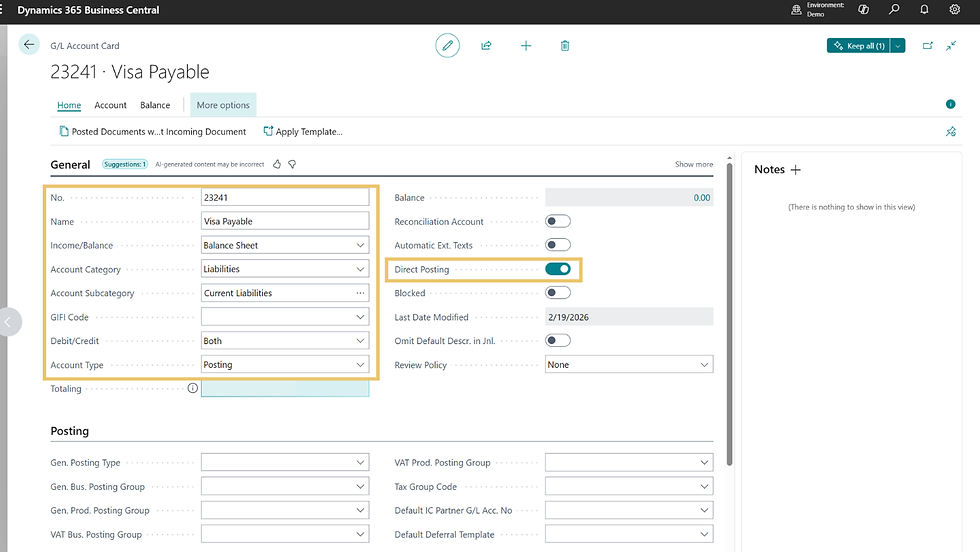
When adding a regular bank account,create a new asset account to reflect the funds held in the bank and choose the correct account:
Asset account for standard bank accounts
Liability account for credit cards
This distinction ensures accurate financial tracking based on the type of account being added.
When adding a new account, it is also essential to fill in all the mandatory fields to ensure proper setup and accurate record-keeping. Additionally, it is advisable to disable direct posting for the account. Turning off direct posting helps to prevent inconsistencies in financial data, supporting a more controlled and reliable accounting process.
Create a Bank Account Posting Group
The next step will be to add a Bank Account Posting Group. Bank Account Posting Groups link your bank account to the correct GL account.
Open the Global search (magnifying glass) to search for Bank Account Posting Group and select the page from the results.

Select +New to open a new posting group.

Enter a unique code and assign the GL Account created in the previous step.
This ensures that transactions associated with this posting group will be correctly recorded in the designated GL account, maintaining accurate and organized financial records.

Add the Bank Account
Once the GL account and posting group are in place, you can create the bank account record.
Navigate to Bank Accounts either from your home page and select Cash Management > Bank Account or selecting the Global Search.

Once at your bank account list page, select +New.

Enter the Name and identifying details. You'll also fill in the Bank Account No. You may type it manually, or press Tab to auto-populate the number series.

Expand the Posting FastTab of the bank account card, select the dropdown arrow, and populate with the new Bank Posting Group created in the above steps.

Set Up a Payment Method
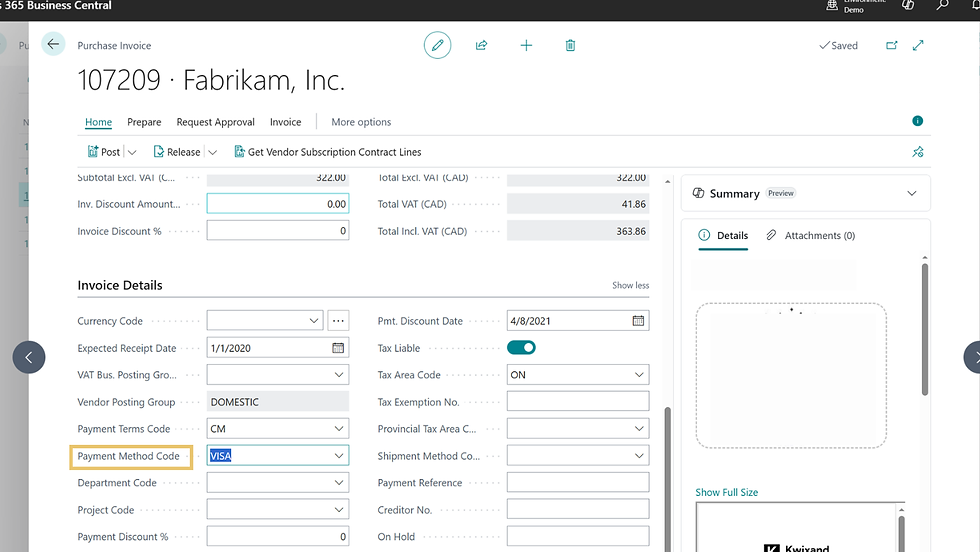
If you intend to use this setup as a payment method for clearing outstanding amounts, you will need to configure the payment method accordingly. This involves creating and assigning the appropriate payment method within the system so that payments can be processed and matched against the amounts owed. By establishing the payment method, you ensure that transactions related to this payment type are handled correctly and efficiently within your financial workflow.
Use Global Search and search Payment Methods.

Select + New and enter a code an description. The Balancing Account type will be Bank Account, and the Balancing Account No. will be the newly created bank account. This ensures payments using this method automatically post to the correct account.

Posting Credit Card Transactions
After you have completed the setup steps for the bank account and payment method, you are ready to begin posting credit card purchases in the system.
When you use the newly configured payment method, each transaction will be accurately mapped to both the designated General Ledger (GL) account and the corresponding bank account. This ensures that all credit card purchases are recorded properly, supporting clear and organized financial records.
Correct bank account setup is essential for reliable accounting in Business Central. Taking the time to configure GL accounts, posting groups, and payment methods upfront helps prevent downstream issues and supports smoother reconciliations.
Have More Questions? Kwixand Solutions Can Help
Feel free to get in touch with the team at Kwixand Solutions for expert assistance. Don't forget to subscribe to our YouTube channel for more Business Central training videos, and stay connected with us on LinkedIn, Facebook, and Instagram, for the latest updates.


