
How to Reconcile a Bank Account in Dynamics 365 Business Central

Updated: Mar 5
Learn how to reconcile a bank account in Dynamics 365 Business Central.

The bank reconciliation process is a pivotal process that ensures every cash transaction in your system ties to a bank transaction. It’s one of the most audited functions, as this is where fraud can occur, or it can be one of the most powerful tools to detect fraud.
Open Bank Account Reconciliations
To navigate to Bank Reconciliations from the home screen, go to Cash Management > Bank Account Reconciliations.

You can also search for Bank Reconciliations by typing it in the Tell Me search menu on the top-right hand corner of your screen.

From here, click New+ if you’re starting a new bank reconciliation.

Setting Up the Bank Reconciliation
Once you’re on the reconciliation screen, you’ll need to enter the following information:
Bank Account: Select the bank you want to reconcile from the dropdown list.
Statement Number: This will auto-populate based on the numbering series you have set up.
Statement Date: This should be the last date of the bank statement you’re reconciling.
Bank Last Statement Balance: This auto-populates based on the ending balance of your previously reconciled statement.
Statement Ending Balance: Enter the ending balance from your current bank statement.

It’s important to note that when you select the statement date, Business Central automatically applies a filter so that only bank account ledger entries up to and including that date are shown. Any transactions posted after that date won’t appear, which helps make the reconciliation process easier.
Getting Bank Transactions into Business Central
Next, you’ll want to get your bank transactions into the system so you can reconcile them.
Typically, you’ll do this using the Import Bank Statement function, which is found under the Bank menu.

If you’re not using the import function, you also have two other options:
Manual Entry: You can manually enter transactions by adding the date, description, and amount from your bank statement.
Click on Suggest Lines: This option looks at all bank account ledger entries within a starting and ending date that you choose and creates a bank statement line for each one.


Beginning the Reconciliation Process
Once you have your bank statement lines on one side and your bank account ledger entries on the other, it’s time to start reconciling.
You can manually match transactions by selecting one item from the bank statement and the corresponding item from the ledger and going to Matching > Match Manually.

You can also use Match Automatically, which uses predefined criteria such as dollar amount, transaction date and description (depending on your setup).

Using Copilot to Reconcile
What’s recommended is using the Copilot reconciliation feature. To use it, click on Reconcile. Then Business Central will show you what has been matched. This includes standard automatic matches and additional matches Copilot identifies.

One key advantage of Copilot is that it can handle scenarios the standard auto-match cannot, such as:
One bank transaction matching multiple ledger entries
One ledger entry matching multiple bank transactions

You can click into a suggested match to see the details. If the combined amounts match and you’re comfortable with it, click Keep It.

Reconciled transactions are shown in bold, making them easy to identify.
Reviewing Unmatched Transactions
If you see a difference, you’ll want to identify what’s still outstanding. You can do this by going to the Show menu and selecting Show Non-Matched.

This filters out reconciled transactions so you can focus only on what still needs attention. A common example of an unmatched transaction is a bank fee.

Recording Bank Fees During Reconciliation
Bank fees are often not entered until the bank statement is received. You can create the entry directly from the bank reconciliation:
Navigate to Home > Transfer to General Journal

Choose your journal template and batch and click OK.
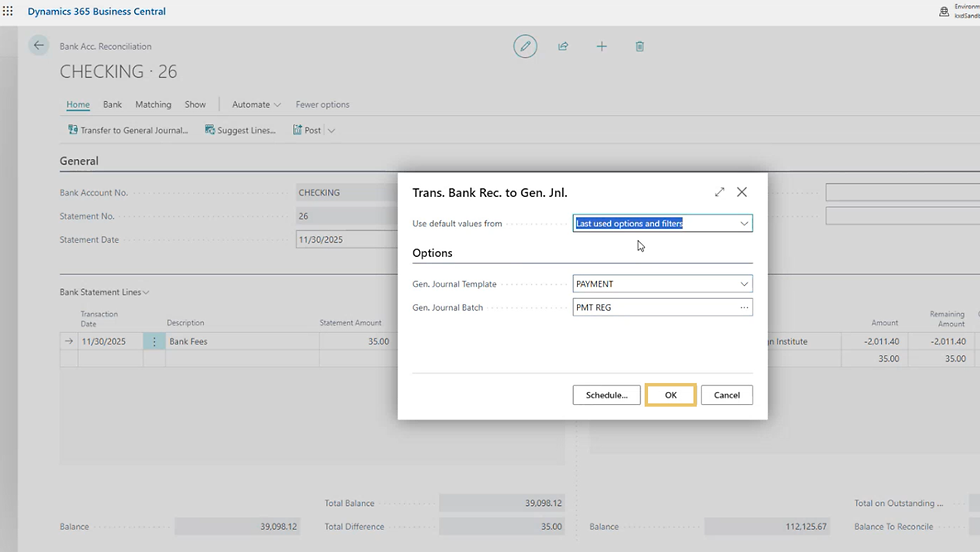
This creates a general journal entry. Once it’s posted, it generates a bank account ledger entry, which will automatically match in the reconciliation by selecting the entries and clicking Matching > Match Automatically.

After posting, return to the reconciliation screen and confirm the match.
Verifying Balances and Totals
Once everything is reconciled, the Total Difference at the bottom should be zero.

Here’s a quick overview of some key fields:
Balance (Bank Statement Side): This is calculated using the last statement balance plus the statement lines up to the selected transaction.
Total Balance: Similar to the balance, but it includes all statement lines regardless of selection.
Balance (Ledger Side): This reflects the bank account balance since the last posting and should tie to the last statement balance.
Outstanding Checks: Shows how many checks are still outstanding and their total amount.
Balance to Reconcile: The total of all transactions minus any outstanding checks.
Keep in mind that when you use filters like Show Non-Matched, these running totals will change. When you switch back to Show All, the totals will return to their full values.
Posting the Bank Reconciliation
Before posting, it’s best practice to run the Test Report function to preview the posting. To do so, navigate to Home > Post > Test Report.

It'll open another window and you can toggle on the 'Print Outstanding Transactions' option and click Preview.

The test report will show:
Outstanding transactions
Outstanding check amounts
General Ledger balance
A list of reconciled bank statement entries
Any errors or issues that need to be resolved

If everything looks good, go ahead and Post the reconciliation by navigating to Home > Post.

You’ll receive a confirmation message, and the reconciliation will be moved to the Bank Account Statement List window.

Training Video: Watch How to Reconcile a Bank Account in Business Central
Feel free to get in touch with the team at Kwixand Solutions for expert assistance. Don't forget to subscribe to our YouTube channel for more Business Central training videos, and stay connected with us on LinkedIn, Facebook, and Instagram, for the latest updates.


